
Let Readers Summarize WordPress Posts in Their AI Assistant
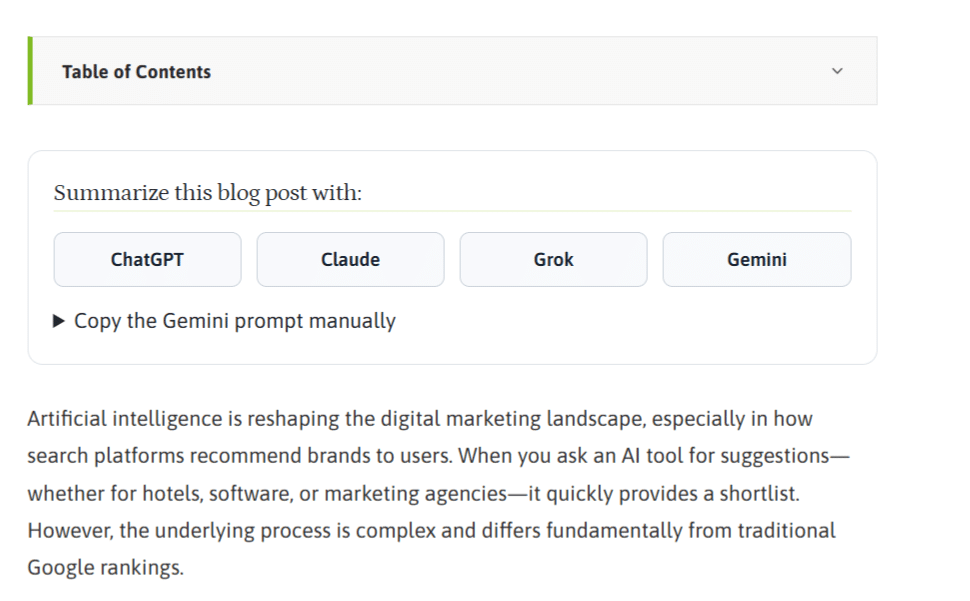
WC AI Summarizer is a free WordPress plugin from Wild Creek Web Studio. It adds buttons to published posts so readers can request a summary in ChatGPT, Claude, Grok, Gemini or Microsoft Copilot.
Choose which assistants to offer, write the prompt and decide where the buttons appear. A reader can open an assistant while keeping the original post available in a separate tab.
Give Readers a Shortcut on Long Posts
A detailed guide can take time to read from start to finish. Summary buttons let readers ask their preferred assistant for the main points, then return to the post for instructions, examples or evidence. The summary is generated on the provider’s website.
The buttons appear after eligible posts by default. Place them above the article if readers should see the option as soon as they arrive, or below it if you want the article to lead.
Offer a Floating Summarize Button
Enable the floating Summarize button on mobile, desktop or both. It stays within reach near the bottom of the screen on long posts and hides when the inline panel is in view. Open it to see the services you enabled, including the manual prompt field if Gemini or Copilot is enabled.
Choose Which AI Assistants to Show
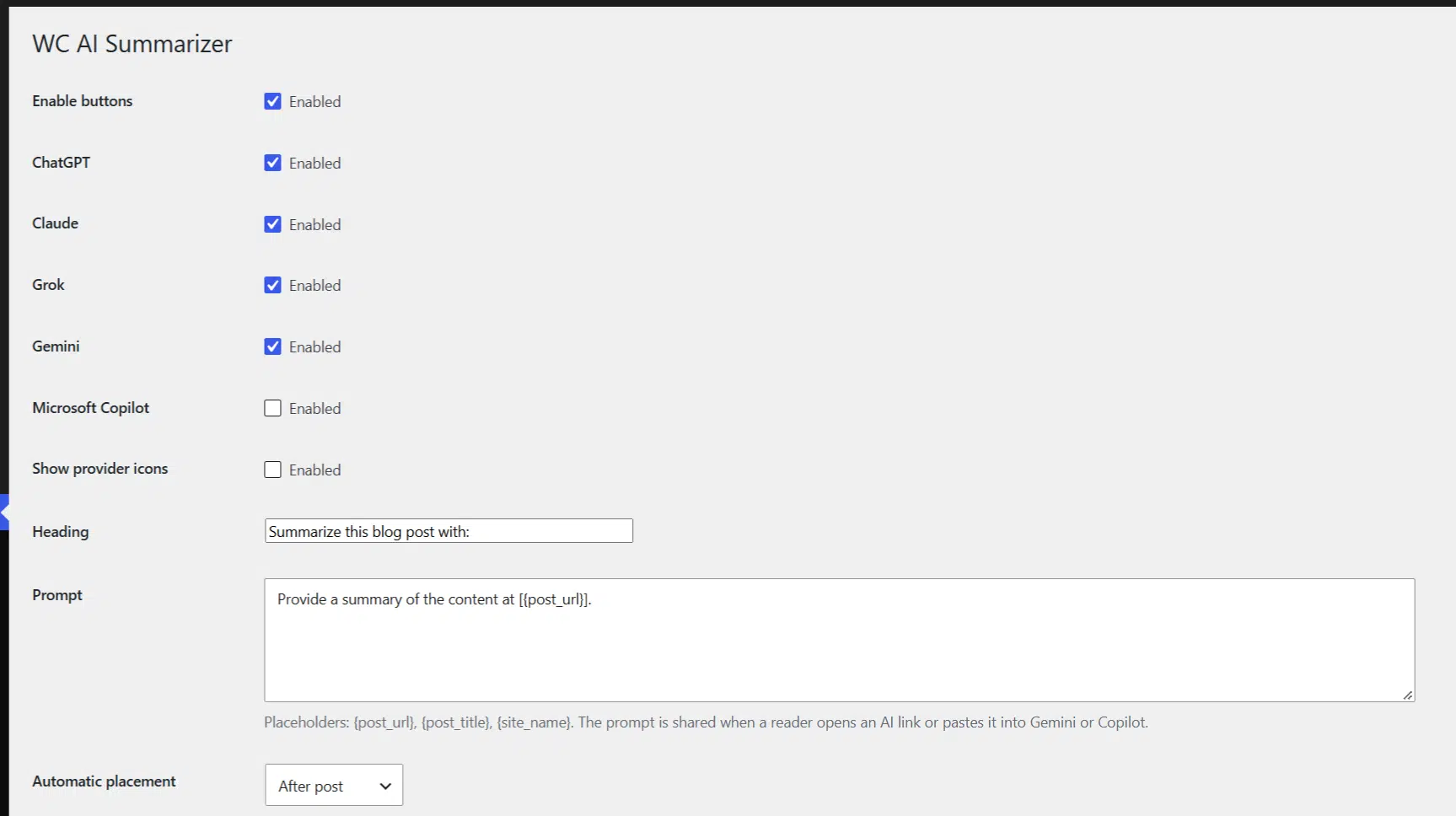
Enable any combination of ChatGPT, Claude, Grok, Gemini and Microsoft Copilot in Settings > WC AI Summarizer. Microsoft Copilot is off by default. Turn on Show provider icons to show icons beside the enabled providers.
ChatGPT, Claude and Grok receive the prompt in the link the reader opens. The provider may ask the reader to sign in, and its handling of the link can change.
Gemini and Copilot open in a new tab. The plugin attempts to copy the prompt so the reader can paste it there. If the browser blocks clipboard access, the reader can return to the post and copy the text from the manual prompt field beneath the buttons.
Write a Prompt That Fits Your Posts
The default prompt asks the assistant to summarize the post at its public URL. You can include the post title or site name, and ask for a specific kind of summary. For a how-to guide, ask for the main steps and any prerequisites. For an analysis, ask for the main finding and the limitations the author states.
Use {post_url} for the post link, {post_title} for the title and {site_name} for your site name. Keep {post_url} in any prompt that asks the assistant to read the original. You can also ask the assistant to say when it cannot access the page.
Control Placement on Individual Posts
Choose Shortcode only and add [wc_ai_summarizer] in a Shortcode block where you want the buttons. If automatic placement is enabled and the post already contains the shortcode, WordPress displays the buttons where you placed it.
To hide the buttons on an individual post, select Hide summary buttons on this post in the editor. Pages, previews, private posts and password-protected posts are excluded.
Understand What Is Sent to Each Provider
WC AI Summarizer builds the prompt on your WordPress site. It does not make server-side AI requests or send the article body. A reader shares the configured prompt when they follow a ChatGPT, Claude or Grok link, or enter the prompt in Gemini or Copilot. Each provider applies its own terms and privacy policy.
What You Need to Run WC AI Summarizer
1.0.0
7.1 or later
8.3 or later
8.4
GPL-2.0-or-later
Free
How to Set Up WC AI Summarizer
Get the Plugin
In your WordPress admin, go to Plugins > Add New, search for WC AI Summarizer, then install and activate it. You can also read about the plugin on its WordPress.org plugin page.
Choose Services and Placement
Open Settings > WC AI Summarizer. Select the services you want to offer and choose where the buttons should appear.
Edit the Heading or Prompt
Edit the heading or prompt if needed. Preview the result on a public post while logged out.
Test the Providers
Try the providers you enabled. If you use Gemini or Copilot, verify both clipboard copying and the manual prompt field.
Frequently Asked Questions
Do I need an AI subscription or API key?
You do not need an API key or subscription to install WC AI Summarizer. Readers use the provider website, which may require its own account.
Does the plugin display an AI summary on my WordPress site?
The plugin displays buttons on your posts. The summary is generated and displayed on the provider website when the reader uses the prompt.
Can I show the buttons on just a few posts?
Yes. Choose Shortcode only, then add [wc_ai_summarizer] to the published public posts you select.
What if the assistant cannot read my post?
Some assistants may be unable to fetch the URL. Ask the assistant to tell you when it cannot access the page, and compare any summary with the original before relying on it.
About WC AI Summarizer
Wild Creek Web Studio develops WC AI Summarizer for WordPress publishers who want to give readers a quick way to use their preferred AI assistant while keeping the original article available to check.
Get WC AI Summarizer
Install the plugin from the WordPress plugin directory.